
QR codes have become one of the easiest ways to share information without asking someone to type anything. You can find them on restaurant menus, business cards, product packaging, posters, event tickets, payment pages, and even classroom materials.
The problem is that many QR code websites make a simple process seem more complicated than it needs to be. You get asked to create an account, provide an email address, start a trial, or pay for features you do not actually need.
If all you need is a QR code for a website, text, contact information, or another simple purpose, you can create one for free without signing up.
What is a QR Code?
A QR code is a two-dimensional barcode that stores information in a pattern of black, white, or colored squares. When someone scans the code with a smartphone, the encoded information can be opened or used immediately.
For example, a QR code can open a website, display text, share WiFi information, open a WhatsApp conversation, or provide contact details. Instead of typing a URL or other information manually, someone just points their camera at the code and it works instantly.
What Can You Use a QR Code For?
QR codes are more versatile than most people realize. You can encode:
- Website URLs
- WhatsApp links
- WiFi network details
- Phone numbers
- Email addresses
- Plain text messages
- Contact information
- YouTube video links
- Google Maps locations
- Payment and donation links
- Restaurant menus
- Social media profiles
- Event information
For example, if you have a portfolio website, you can put its URL into a QR generator and place the resulting code on your business card. Someone can scan it and open your portfolio without typing the address.
How to Create a QR Code for Free
Creating a QR code does not require an app or complicated software. You can use the Zehbee QR Code Generator directly from your browser. Here is the complete process.
Step 1: Open the QR Code Generator
Go to zehbee.com/qr-generator directly in your browser. No installation needed.
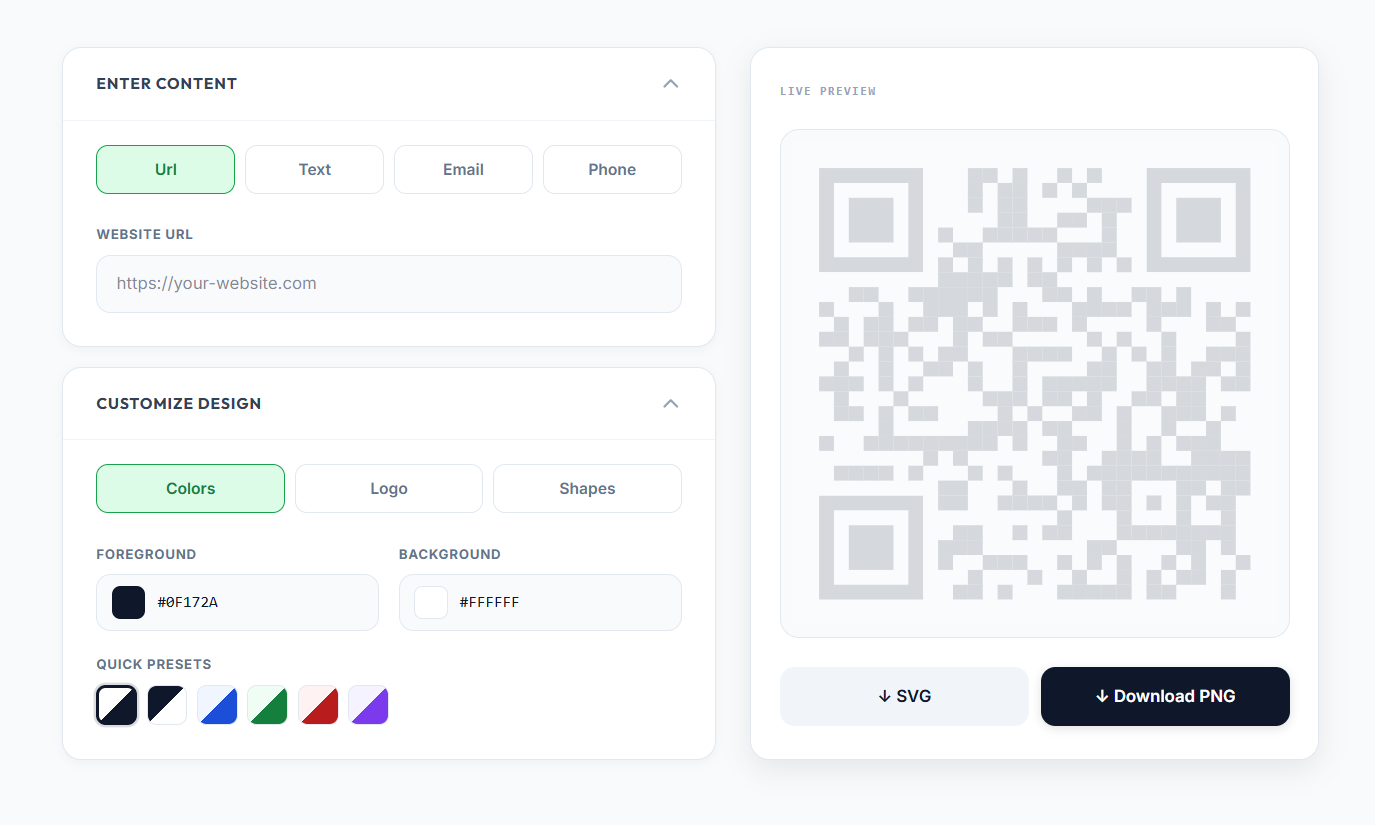
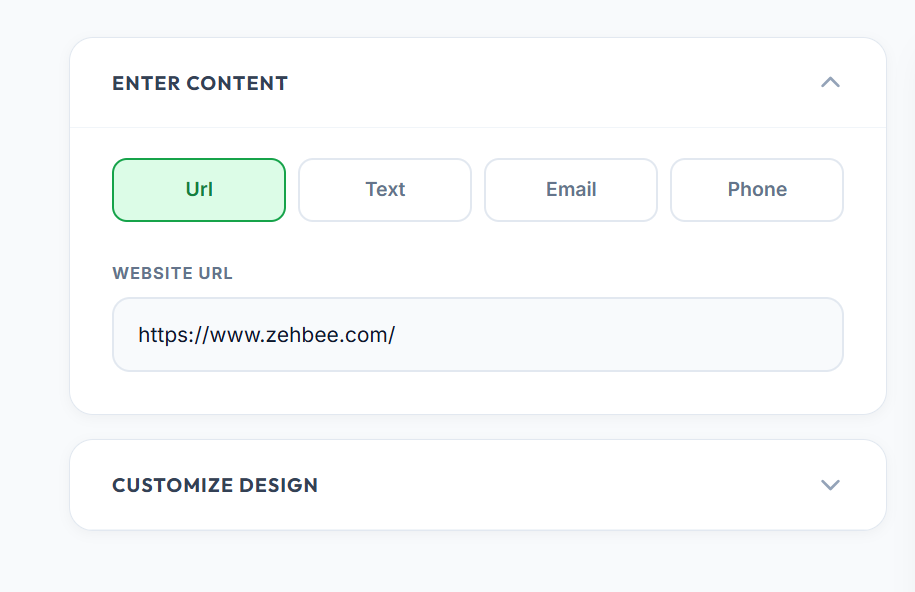
Step 2: Enter Your URL or Information
Paste the URL or text you want to encode. This can be your website, portfolio, online store, menu, social profile, or any other link you want people to visit.
Step 3: Generate Your QR Code
Once you enter your information, the QR code generates instantly. You can preview it before downloading.
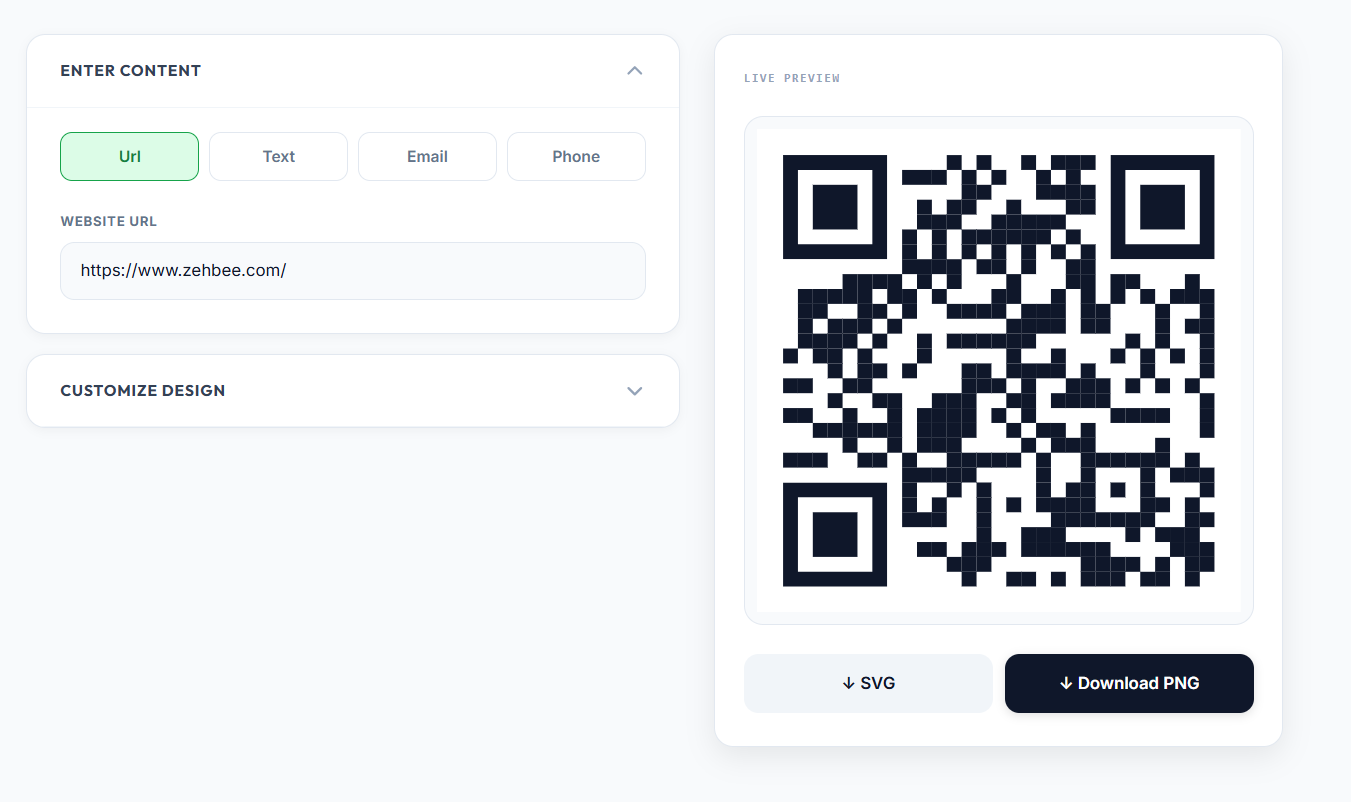
At this point you already have a working QR code ready to save and use.
Step 4: Test Your QR Code
Scan the QR code with your phone from the distance where people will actually use it. Make sure it opens the correct destination before printing or sharing it.
Step 5: Customize Your QR Code
You do not always have to use a plain black and white QR code. If you want it to match your branding, you can customize the color or overall appearance.
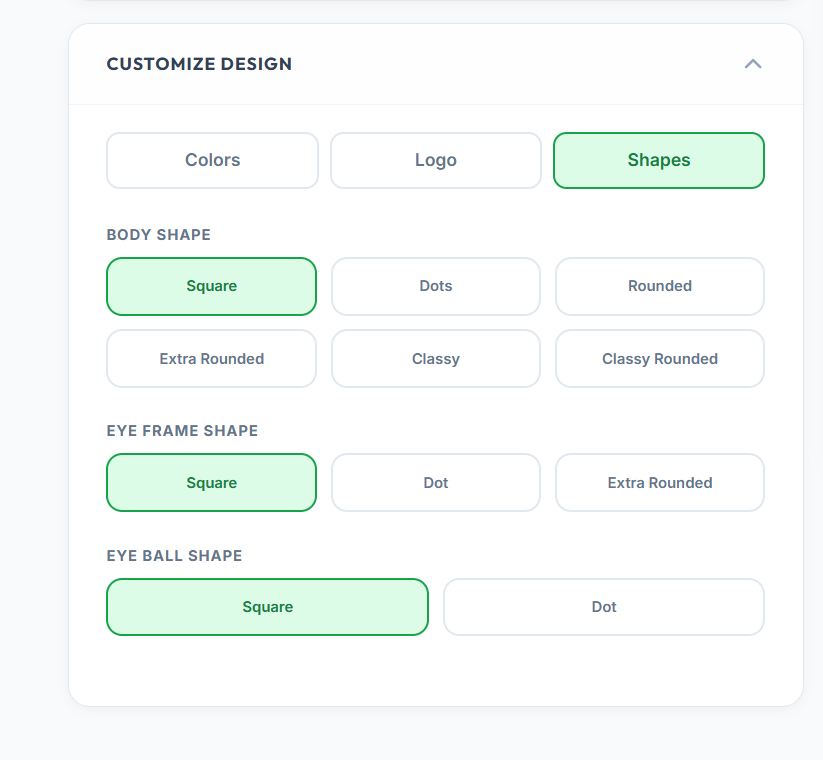
Customization is especially useful for business cards, packaging, menus, flyers, and other branded materials.
Step 6: Add Your Logo
If you are creating a QR code for a business or personal brand, you can add your logo directly to the code. Just make sure to test it after adding a logo since heavy customization can sometimes make QR codes harder to scan.
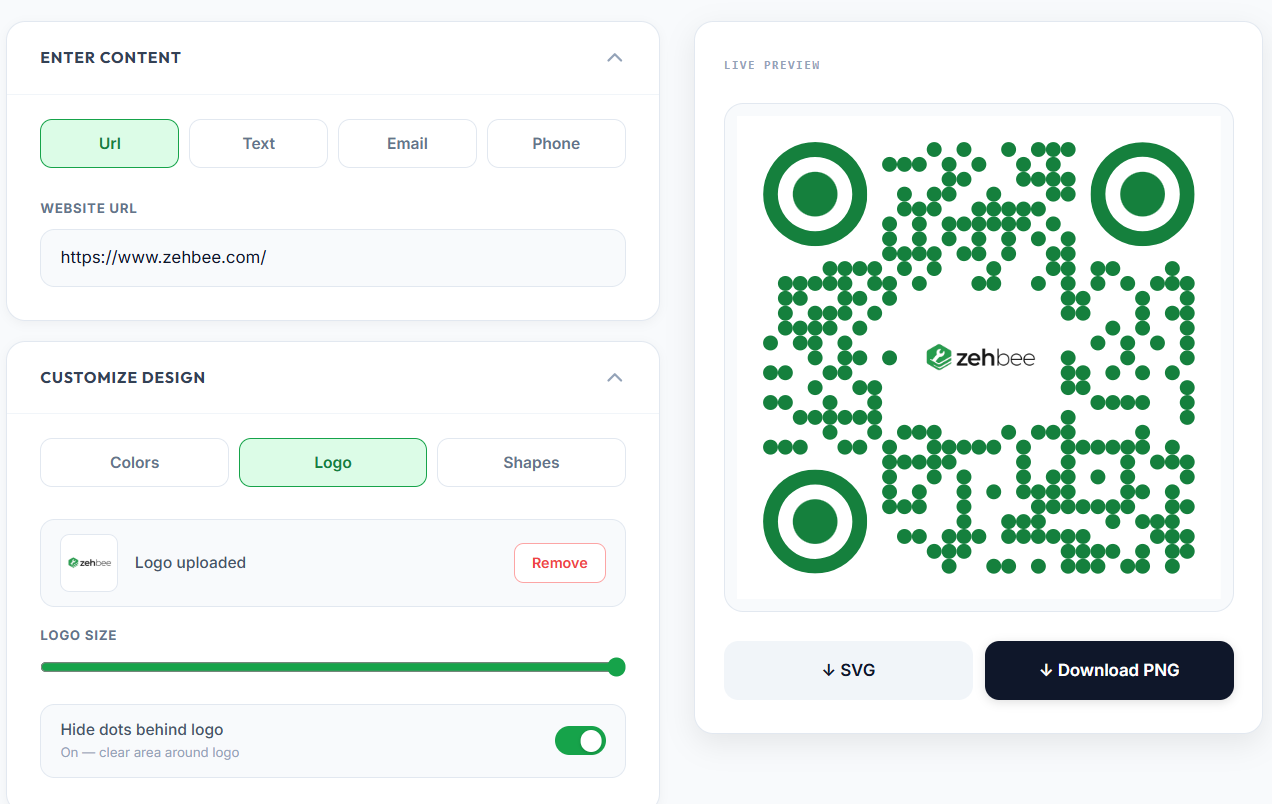
Step 7: Download Your QR Code
Once you are happy with the result, download your QR code. Choose PNG for digital use or SVG for print since SVG scales to any size without losing quality.
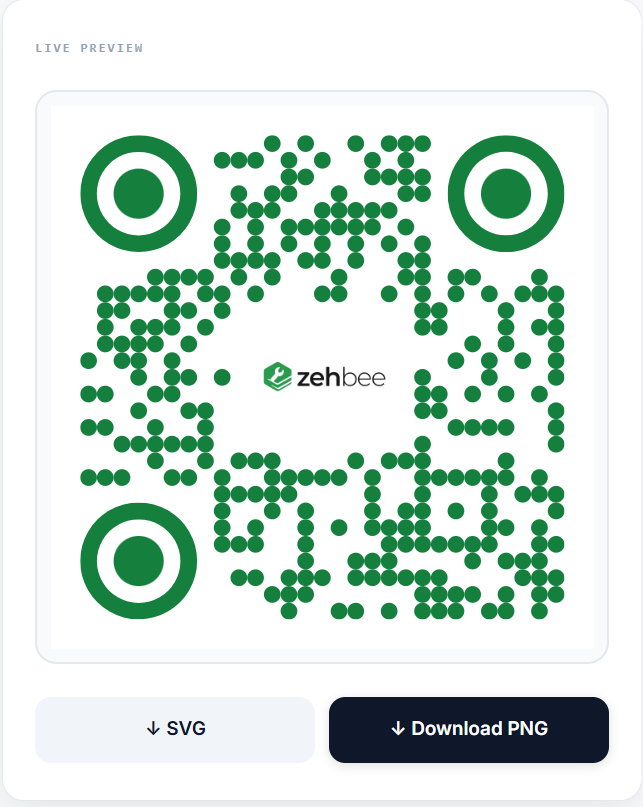
That is all. You can now place the QR code on your business card, flyer, menu, packaging, website, or anywhere else you need it.
📱 Need a QR code right now? Try our free QR Code Generator, generates instantly, no signup, no watermark, completely free.
Do QR Codes Expire?
This is one of the most important things to understand before printing a QR code. A static QR code does not have an expiration date. However, it will only continue working as long as the information it points to such as a website or file remains available.
If the website you encoded is removed or no longer accessible, scanning the QR code will not work. The QR code itself is fine but the link it points to is broken.
Static vs Dynamic QR Codes
| Feature | Static QR Code | Dynamic QR Code |
|---|---|---|
| Information stored in code | Yes | Uses a redirect |
| Expiration date | No | Depends on service |
| Change destination after printing | No | Usually yes |
| Scan tracking | Usually no | Usually yes |
| Third party service required | No | Usually yes |
A static QR code is the right choice when you know where you want the QR code to send people and do not need to change the destination later. For most everyday uses like business cards, menus, and social links, static is all you need.
What Size Should a QR Code Be?
| Use Case | Recommended Size |
|---|---|
| Business card | Around 2 x 2 cm |
| Flyer | Around 3 x 3 cm |
| Poster | Larger depending on viewing distance |
| Website | Around 150 x 150 px minimum |
| Product packaging | Around 2 x 2 cm |
The ideal QR code size depends on scanning distance and how much information it contains. Larger QR codes are generally easier to scan from a distance. Always test your QR code before printing or sharing it.
How to Make Sure Your QR Code Works
Before printing your QR code on business cards or packaging, always test it:
- Scan it with your phone and confirm it opens the correct destination
- Test from the distance where people will actually scan it
- Make sure there is enough contrast between the code and its background
- Do not cover too much of the QR pattern with a logo
A QR code can look great and still be difficult to scan if it has been customized too heavily.
Frequently Asked Questions
Can I create a QR code for free? Yes. The Zehbee QR Code Generator lets you create a QR code directly in your browser with no signup and no watermark.
Do static QR codes expire? No. A static QR code itself does not have an expiration date. However the link it points to still needs to remain active and accessible.
Do I need an app to create a QR code? No. You can create a QR code directly from a web browser using an online generator.
Can I add my logo to a QR code? Yes. The Zehbee QR Code Generator supports logo customization. Always test the QR code after adding a logo to make sure it still scans correctly.
Can I use a free QR code for my business? Yes. Static QR codes work perfectly for business cards, menus, packaging, websites, and flyers. Paid services are only worth it if you need scan analytics or the ability to change the destination URL after printing.
Can I print a QR code? Yes. Download as SVG for print projects since it scales to any size without losing quality. PNG works for digital use and smaller print applications.
Quick Recap
Creating a QR code is free, instant, and does not require any signup or app. Go to the QR Code Generator, enter your URL or text, customize if needed, and download. Static QR codes never expire so you can use them permanently on business cards, flyers, menus, or anywhere else you need them. Always test before printing.
Related Articles
- How to Make a QR Code for WiFi Password
- How to Make a QR Code for WhatsApp
- How to Convert an Image to PDF for Job and College Applications
- JPG vs PNG: Which Format to Use for Online Applications