
Sharing your WhatsApp number is easy, but asking someone to manually type a phone number is inconvenient. A WhatsApp QR code gives people a quicker way to open a conversation by simply scanning a code with their phone camera.
This is useful for businesses, freelancers, customer support, social media profiles, business cards, flyers, and anyone who wants to make contacting them easier. You can create one in about a minute using our free QR Code Generator.
What is a WhatsApp QR Code?
A WhatsApp QR code is simply a QR code that contains a WhatsApp link. When someone scans it, their phone opens the link and takes them directly to a WhatsApp conversation with your number. No typing, no searching for contacts, just scan and chat.
How to Create a QR Code for WhatsApp
Step 1: Create Your WhatsApp Link
First, create the WhatsApp link for the number you want people to contact. The format is:
Replace "yourphonenumber" with your complete phone number including the country code. Do not include spaces, brackets, or dashes in the number.
For example, if your number is +1 300 1234567, your link would be:
Double check the number is correct before moving to the next step. A wrong digit means people will be sent to the wrong contact.
Step 2: Open the QR Code Generator
Go to zehbee.com/qr-generator directly in your browser. No app or signup needed.
Step 3: Enter Your WhatsApp Link
Paste your WhatsApp link into the input field.
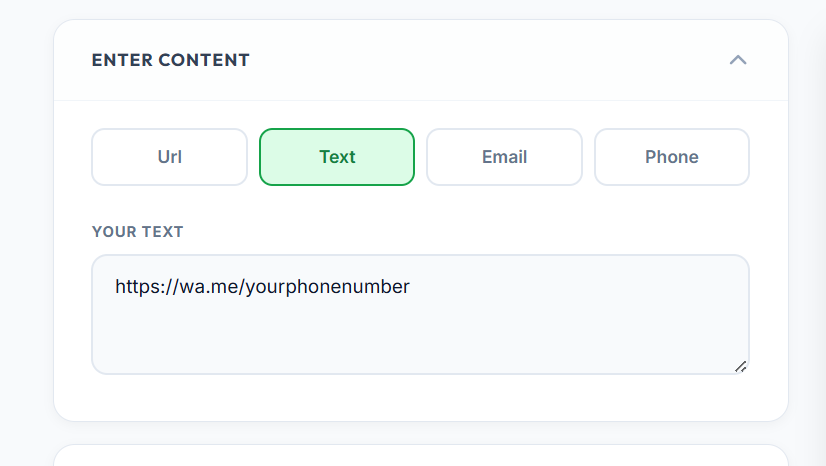
Check the link carefully before generating. The QR code will store exactly what you enter so an incorrect link means an incorrect QR code.
Step 4: Generate the QR Code
Once you enter the link, the QR code generates instantly.
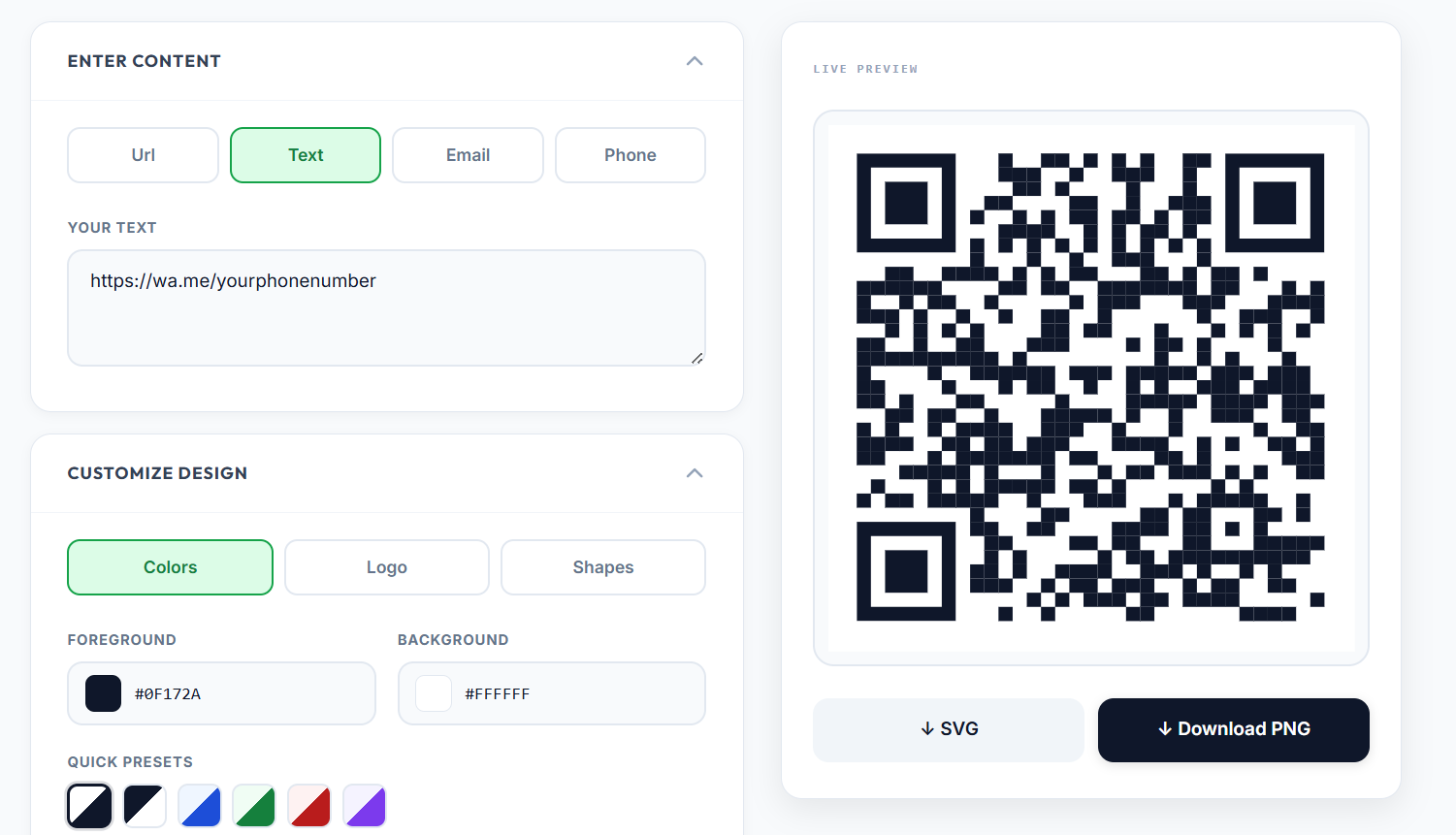
Step 5: Test Your QR Code
Always scan the QR code with your phone before sharing or printing it. Check that it opens the correct WhatsApp conversation. If it does not, go back and check the phone number and country code in your link.
Testing before printing is especially important because fixing a mistake after printing a batch of business cards or flyers is a pain.
Step 6: Customize Your QR Code
You can customize the color and style of your QR code to match your branding. You can also add your logo to give it a more professional look.
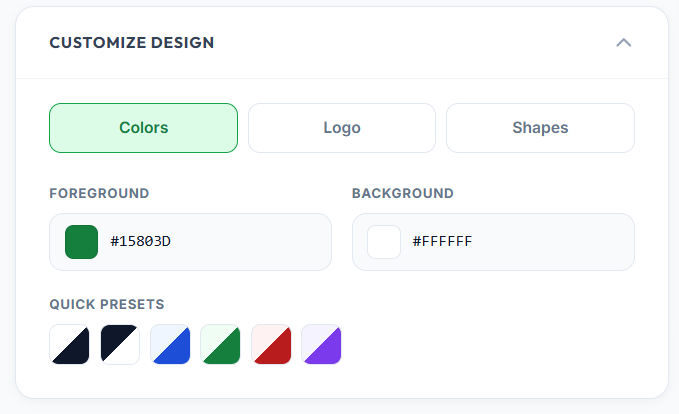
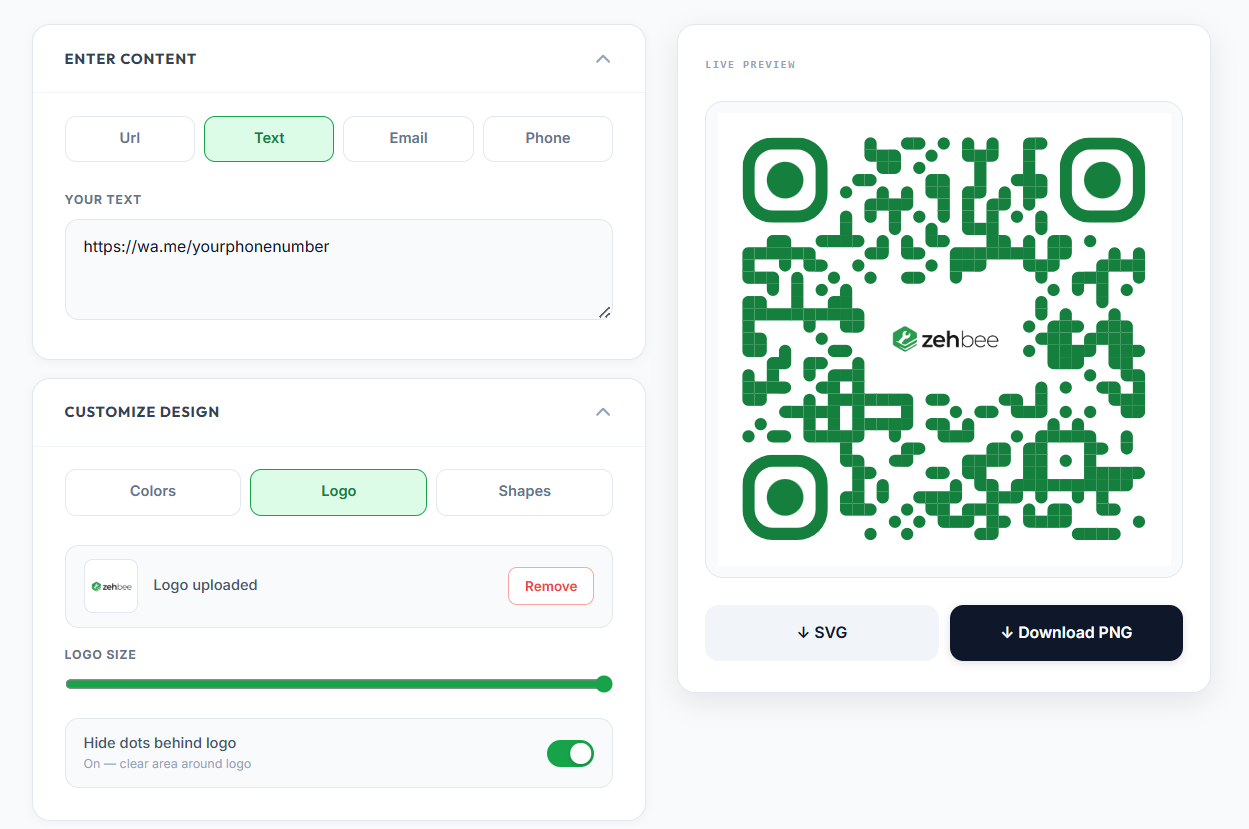
Just make sure to scan the customized version after adding colors or a logo to confirm it still scans correctly. Heavy customization can sometimes make QR codes harder to read.
Step 7: Download and Use
Download your QR code as PNG for digital use or SVG for print. SVG scales to any size without losing quality which makes it ideal for business cards, posters, and packaging.
💬 Want people to contact you on WhatsApp instantly? Create a free WhatsApp QR code with our QR Code Generator, no signup, no watermark, download in seconds.
Where Can You Use a WhatsApp QR Code?
There are many practical places to use a WhatsApp QR code:
Business Cards — Add the QR code so potential customers can scan and contact you instead of typing your number manually.
Websites — Place it on your contact page. Useful when someone is viewing your site on a laptop and wants to continue on their phone.
Posters and Flyers — Makes printed advertising interactive. Instead of typing a number from a poster, someone just scans.
Restaurants and Local Businesses — Lets customers ask questions or place orders on WhatsApp without searching for a number.
Social Media — Add to promotional graphics or posts so followers can contact you instantly.
Product Packaging — Gives customers a convenient way to reach you after purchasing.
Can I Add a Pre-Filled Message?
Yes. WhatsApp links support pre-filled messages which can be useful for businesses. The format is:
https://wa.me/yourphonenumber?text=Your%20message%20here
For example you could create a link that opens a conversation with the message "I would like to know more about your services" already typed in. Just convert that complete URL into a QR code using the same steps above.
Is a WhatsApp QR Code Permanent?
A static QR code does not expire on its own. However if you change your WhatsApp number, the old QR code will still point to the old number. You would need to create a new QR code with the updated link.
Common Mistakes to Avoid
Forgetting the country code is the most common mistake. Make sure your WhatsApp link includes the full international number starting with the country code.
Other things to watch out for:
- Spaces or dashes in the phone number inside the URL
- Not testing the QR code before printing
- Printing the QR code too small to scan comfortably
- Using a blurry screenshot of the QR code instead of the original downloaded file
Frequently Asked Questions
Can I create a WhatsApp QR code for free? Yes. Our QR Code Generator turns any WhatsApp link into a QR code for free with no signup and no watermark.
Can I put a WhatsApp QR code on a business card? Yes. Download as SVG for best print quality and make sure the QR code is at least 2cm x 2cm so it scans easily.
Can I add a pre-filled message to a WhatsApp QR code? Yes. Create the WhatsApp link with the text parameter included and then generate the QR code from that complete URL.
Can I change the WhatsApp number after creating the QR code? No. The QR code stores the original link. If you change your number you need to create a new QR code with the updated WhatsApp link.
What if my WhatsApp QR code does not work? Check that the phone number in your WhatsApp link is correct, includes the country code, and has no spaces or extra characters. Generate a new QR code after fixing the link.
Quick Recap
Create your WhatsApp link using your full international phone number, paste it into our QR Code Generator, generate the code, test it by scanning with your phone, customize if needed, and download. Place it on your business card, website, flyers, or anywhere people need to reach you quickly.
Related Articles
- How to Create a QR Code for Free
- How to Make a QR Code for WiFi Password
- How to Convert an Image to PDF for Job and College Applications
- JPG vs PNG: Which Format to Use for Online Applications